How Submissions Work
A submission represents a single QC job for a client report. Each submission contains:
- Raw data files (Responses.csv, Contacts.csv, Question_Cross_Reference.csv)
- The PDF report to validate
- Client settings that configure how data is processed
- Checks that validate different aspects of the report
The system recalculates expected values from your raw CSV data and compares them against AI-extracted values from the PDF report.
Quick Tips
- After running all other checks, use "Generate Leftover Pages" to catch any unchecked PDF pages
- Review differences carefully - AI extraction isn't perfect
- Add notes when overriding checks to document your reasoning
- Create new submissions for re-runs, don't reuse old ones
- Create a separate submission for each segment report
Not Checked by QC Automation
The following items are not currently validated by QC automation and must be reviewed manually:
- Blanks on Participation card, Hot Spots, and eNPS page
- Titles not matching page content
- Source/Footer N= number
- Source/Footer date ranges
- Most Important Improvement Themes (Segments and Total Org)
- Most Important Improvement Comment Categorization Counts (Segments and Total Org)
- Key Driver Analysis
- Report Definitions
Client Settings
The Settings page (gear icon) configures how data is processed for the entire submission:
- Primary Period - The time period being analyzed (e.g., "Last 3 Months")
- Comparison Period - Previous period for Fav/Unfav, Hot Spots, Participation, etc. comparison
- Key Segments - Demographic fields to analyze
- Minimum N - Minimum responses allowed to be shown in a group
- Today's Date - The reference date for calculations. Adjust this when the report was generated in a different month from today's actual current date.
- Segment Filter - Filters ALL data to a specific segment for Type A segment reports (see Report Types below)
Important: Today's Date
Today's Date is the basis for all date-based calculations (e.g., "Last 3 Months" is calculated from this date).
If you are working on historical reports (not from the current month), you must set Today's Date to a date within the month the report was created.
Be especially careful near the end of a reporting period. If you roll over to the first of the next month, your calculations will be wrong. Reset Today's Date to the correct month.
Report Types
Total Org Reports
For total organization reports, you can select which checks to run. Leave the Segment Filter empty in client settings.
Type A Segment Reports
Type A segment reports are structured like total org reports but filtered to a specific segment.
For Type A: Set the Segment Filter in the Client Settings page. Then use the standard checks (fav_unfav, hot_spots, etc.) just like a total org report. The data will be automatically filtered to the correct subset.
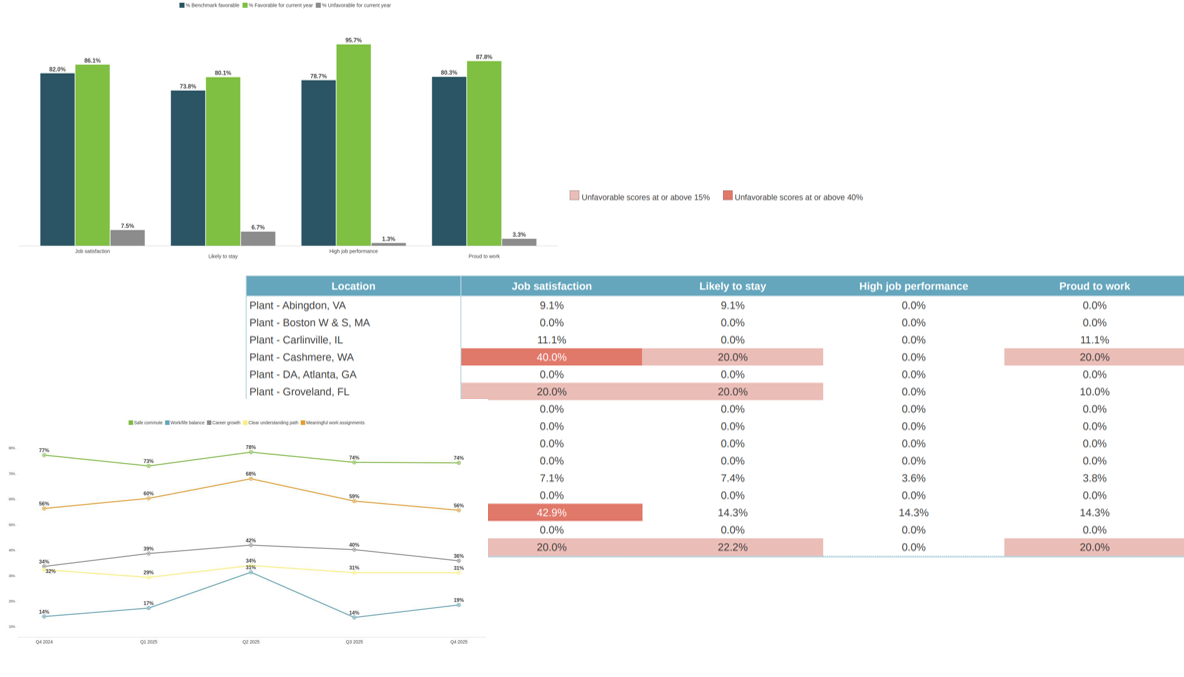
Type B Segment Reports
Type B segment reports show segment data compared against total org data (e.g., "vs Total Org" column).
For Type B: Do NOT set the Segment Filter in Client Settings. Instead, use the Segment Detail Breakdown check and set the segment filter within that check's settings. This allows the check to compare segment data against unfiltered total org data.
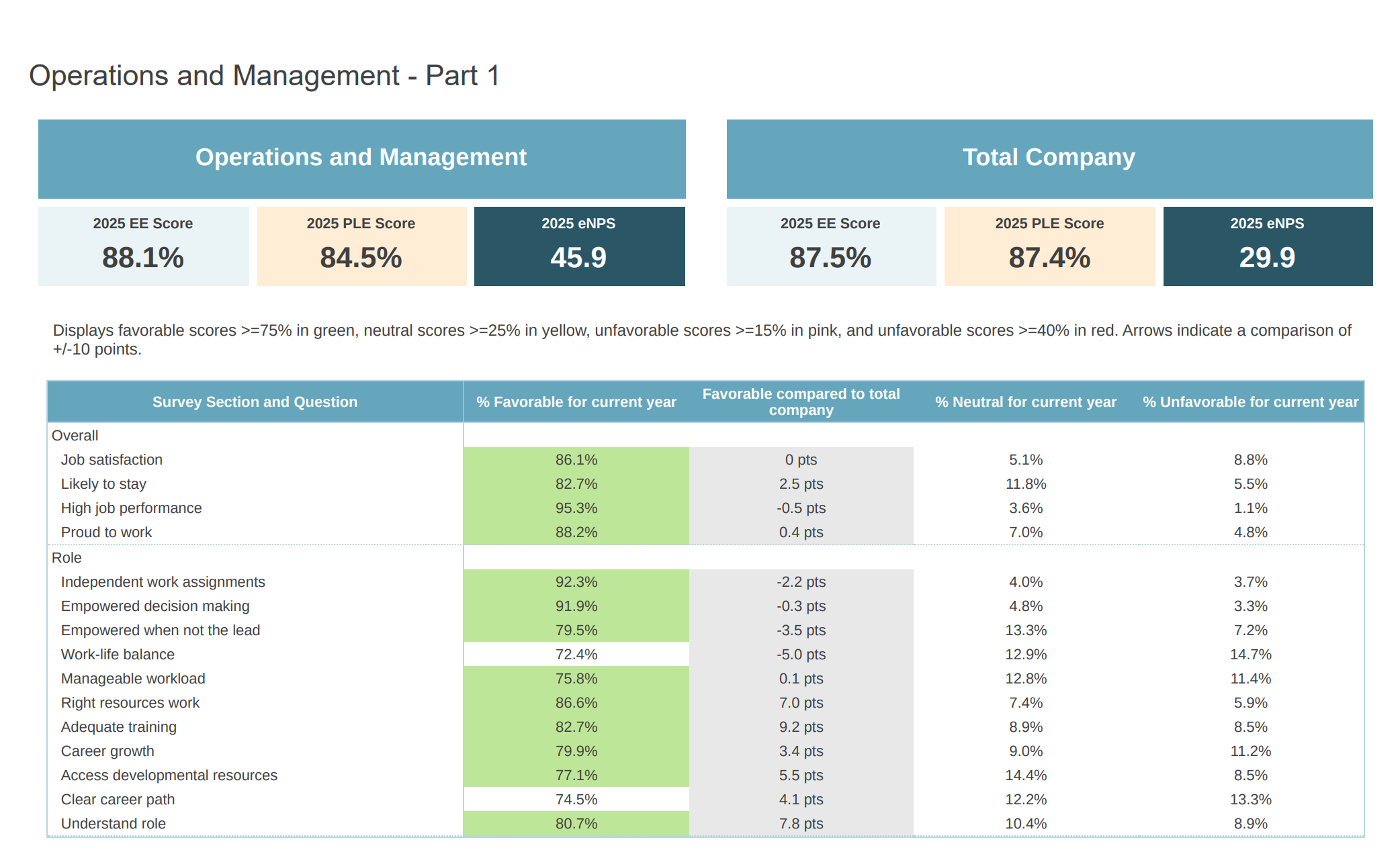
Every segment report being checked needs its own submission.
Running Checks
- Upload your data files and PDF report
- Configure client settings (primary period, key segments, etc.)
- Run each check by clicking the play button
- Review the results and differences found
- After running all checks: Use the "Generate Leftover Pages" feature to identify any PDF pages that weren't covered by your checks. Manually review the data on those pages.
Reviewing Differences
When a check finds differences, you need to review them carefully:
Not all differences are real problems.
The extracted data is pulled via AI reading the PDF, which can sometimes make mistakes. This leads to false positives - reported differences that aren't actually issues with the report.
If you review a difference and determine it's not a real problem (AI extraction error, acceptable rounding, etc.), you can manually override the check as PASS using the override buttons.
Add a note when overriding to document why you're accepting the difference.
Report Re-runs
If you need to re-run a report: Create a new submission instead of trying to update the previous one.
Submissions are designed to be immutable records. Creating a new submission ensures you have a clean slate and preserves the history of previous QC attempts.